ATAI Gold AI
A disciplined gold basket workflow. Clear controls. Full visibility.
An automated MetaTrader 5 strategy for gold, with fixed trading parameters, ATAI news-aware basket scheduling, broker-session timing and a blue on-chart dashboard.

- Gold / USD · M15 only
- Fixed 0.01-lot starting size
- USD news + broker-session holds
- One-account ATAI licence
- Blue status dashboard
- USD 20,000 minimum new-basket equity
Match your buying power.
The reference is $20,000 USD at 1:100 gold leverage. Lower leverage needs more capital to match it. Higher leverage never reduces the $20,000 floor.
Use the terms for gold / XAUUSD, not your account’s headline leverage. A 7.5% margin requirement is about 1:13.33 leverage.
Enter your broker’s gold leverage or margin percentage to see the amount.
How this amount is calculated
Capital = the higher of $20,000 and ($2,000,000 ÷ gold leverage), or ($2,000,000 × gold margin % ÷ 100). Results are rounded up to the next whole USD.
This compares theoretical margin capacity under linear margin rules. It does not measure the EA’s worst possible loss or guarantee that the strategy can operate successfully. Fees, open positions and trading losses reduce available buying power; additional reserves may be needed.
Confirm with your broker before purchasing. Check gold margin, contract size, hedged-position rules and any higher margin tiers. Your account needs sufficient available buying power, not just the displayed balance. This tool does not verify your broker or account.
One account. A complete workflow.
Before purchasing: use the buying-power calculator and confirm your broker’s gold margin requirements. Lower leverage can require more capital. Payment is confirmed before access is activated. Download from your account, bind the licence to your trading account, and test on demo first. Renew manually or buy another licence for a separate account. The EA’s fixed $20,000 equity gate does not adjust to broker leverage; it is not a substitute for this buying-power check.
Explore the account history.
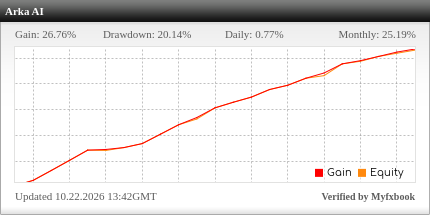 View results on Myfxbook ↗
Historical reference account; editions, settings and broker conditions may differ from this release. Update timing and data availability depend on Myfxbook and the connected account. Past performance does not guarantee future results.
Before you subscribe
Use MetaTrader 5 desktop on a hedging account, with a gold versus US dollar instrument such as XAUUSD or a broker-suffixed equivalent. The chart must be M15. MT4, netting accounts and the MetaTrader mobile app cannot run this edition.
The EA requires at least USD 20,000 equivalent in account equity before starting a new basket. This is an eligibility check, not a guarantee that the capital is sufficient to survive market moves. The fixed initial size is 0.01 lot; later grid orders can be larger. Use a broker that supports this volume step, with low spreads and commissions. Check your broker’s gold contract specification and leverage.
Extreme market conditions can produce drawdown of 50% or more. There is no automatic 50% equity stop and no fixed basket stop-loss enabled in this edition. A persistent trend, gaps, widening spreads, financing costs or delayed execution can cause substantial losses, including the entire trading balance. Test on a demo account before using real money.
Install and activate your licence
- Complete your order and open Account → Downloads & licences to find your ATAI Gold AI licence. A monthly purchase covers 30 days and one MetaTrader account. You can purchase a separate licence for another account or select an existing licence when renewing; renewal does not create a second account slot.
- Register the exact MT5 account number and broker server shown in your terminal, then copy the licence ID. No trading password is required for licence activation. The first account binding is followed by one permitted account change under the current licence policy.
- Download the compiled .ex5 file from Account → Downloads & licences. In MT5 select File → Open Data Folder → MQL5 → Experts, copy the file there, then refresh Expert Advisors in Navigator or restart MT5.
- Open your broker’s gold/USD chart and select M15. Attach ATAI Gold AI once to that chart. In Inputs, paste the licence ID, review the news and session timings, and adjust the blue dashboard if needed. Keep other EAs from managing the same positions.
- This EA opens positions only on a 15-minute (M15) chart. On any other timeframe, it shows: “This EA only works on 15-minute (M15) charts. Change the chart timeframe to M15.” New baskets and additional positions are blocked. Existing positions keep their exit management. Switch the chart back to M15 to clear the warning; the other licence, news and session checks still apply.
- Complete the WebRequest step below, enable Algo Trading in the toolbar and allow algorithmic trading for this EA. Confirm that the blue panel shows an active licence and the correct account, a connected calendar, and the reason for any trading hold.
- Keep the desktop terminal or VPS running and connected. The mobile app can monitor your account but does not run the EA. When changing from another EA edition, start flat: this edition uses a separate position identifier and does not take over positions created by older editions.
Required: allow the ATAI connection
In MT5 open Tools → Options → Expert Advisors. Enable “Allow WebRequest for listed URL” and add the address below exactly. Click OK, then reattach the EA or wait for its next connection attempt.
This connection serves two purposes: verifying your ATAI licence and downloading the ATAI USD news calendar. Use https://atai.ca, without a space or a different domain. No API key or broker password needs to be added to the URL.
If you see error 4014 or an instruction to allow ATAI, check this list first. An HTTP error, an expired licence, a wrong account/server binding or stale news data is shown on the panel and prevents new baskets. Licence verification uses short signed leases; an expired or rejected lease also blocks additional grid exposure. Existing exit management remains active while the terminal can trade.
The retail edition depends on online licence and calendar services. MT5 Strategy Tester does not provide the same WebRequest workflow; a demo account is the appropriate first installation test.
https://atai.caOfficial MetaTrader documentation ↗How the trading model manages a basket
ATAI Gold AI is a rules-based automated gold grid strategy. It can hold both buy and sell positions and manages its own trades as a basket. The product name does not mean that a language model chooses each entry or that the strategy learns from your account.
Its fixed starting size is 0.01 lot, also used as the linear size increment as a side develops. The original candle and price-spacing conditions remain in the engine. A new M15 candle does not guarantee an order: the strategy conditions, licence, account permissions and timing gates must also allow it.
The combined basket floating-profit target is 20 units of your account currency, calculated for this EA’s positions on this symbol. Side / first-and-last management uses a target of 5 units when its position-count and strategy conditions apply; the minimum count for that logic is 3. These are basket-management rules, not a guaranteed profit on each trade. The MT5 Trade-tab total can include unrelated trades and can differ from the EA’s own total.
The profit calculation includes floating position profit and swap. Commissions, execution prices and slippage can make the final realised result different from the displayed trigger. Once a full-basket close is triggered, the EA continues trying to close its remaining positions and holds new entries until that closing cycle is complete. A broker delay or fast price reversal can still turn a profitable trigger into a realised loss.
Lot sizing, grid logic, profit thresholds, position identifier and the disabled fixed basket loss exit are intentionally hidden from customer Inputs. They are fixed in this edition; the controls below change scheduling and appearance, not the trading model.
News pauses: finish the basket, then wait
The EA reads the ATAI calendar at atai.ca and uses USD events relevant to gold. The default is high-impact news only, with a hold beginning 120 minutes before the scheduled event and ending 120 minutes after it. You can include medium-impact events or all three impact levels.
A pause blocks the start of a NEW basket. It does not close an existing basket at a loss, and an existing basket can continue adding and managing positions under its original strategy. If that basket finishes during a hold, the EA waits before starting another. This is not a guarantee of being flat during the announcement.
Example: a 14:00 event with the default settings holds new baskets from 12:00 until 16:00. Overlapping event windows are combined. Trading resumes only when the news window, broker-session rules, licence, equity requirement and strategy conditions all permit it.
The calendar is refreshed while the EA is flat. Missing, stale or incomplete calendar data prevents a new basket. Event timing uses ATAI server time; the dashboard timezone changes only the displayed clock. Scheduled news filters cannot anticipate unscheduled headlines or guarantee protection from volatility.
Broker sessions: your location does not matter
The EA reads this gold symbol’s trading sessions from your broker. By default, no new basket starts during the final 120 minutes before the session closes or during the first 60 minutes after it opens. This is not a fixed Toronto, London or VPS time.
Example: if the broker’s gold session closes at 23:00 and the next session opens at 01:00, new baskets stop at 21:00 and become eligible again at 02:00, in broker time. An open basket remains managed and may continue its grid until it closes normally; the schedule does not force a losing exit.
Closed weekend records are handled separately from weekday sessions. Continuous sessions split at midnight are joined so midnight alone does not trigger a pause. The EA depends on the schedule supplied by the broker; it does not invent missing holiday hours. An unavailable or invalid schedule holds new baskets and shows a status message.
Trading controls available in InputsDefaults and what each control changes
| Setting | Default | Meaning |
|---|---|---|
| InpLicenseID | Blank | Paste the licence ID from your ATAI account after binding the correct MT5 account and server. |
| MinutesBeforeNews | 120 minutes | Stop starting new baskets this many minutes before selected USD news. Accepted range: 0–1440. |
| MinutesAfterNews | 120 minutes | Wait this many minutes after selected USD news before another basket can start. Accepted range: 0–1440. |
| NewsImpactFilter | High impact only | High only; High + Medium; or High + Medium + Low. This selects ATAI’s impact classification. |
| MinutesBeforeMarketClose | 120 minutes | Hold new baskets before the broker’s gold session closes. Accepted range: 0–1440. |
| MinutesAfterMarketOpen | 60 minutes | Wait after the broker’s gold session opens. Accepted range: 0–1440. |
Blue dashboard controlsDefaults and what each control changes
| Setting | Default | Meaning |
|---|---|---|
| InpShowPanel | true | Show or hide the blue information dashboard. Hiding it does not disable trading. |
| InpPanelFont | Segoe UI | Dashboard typeface. |
| InpPanelFontSize | 11 | Text size, from 9 to 18. Use a smaller size on a small chart. |
| InpPanelX / InpPanelY | 16 / 24 pixels | Position the dashboard relative to the top-left of the chart. |
| InpPanelBackground | Dark blue | Background colour of the dashboard. |
| InpPanelBorder | Blue | Dashboard border colour. |
| InpPanelAccent | Cyan | Accent colour for key information. |
| InpDisplayClock | Broker server time | Choose broker, device/VPS, UTC or a custom fixed offset. This affects displayed times only. |
| InpDisplayUTCOffsetHours | 0 | Used only with the custom display-clock option; accepts offsets from −12 to +14 hours. |
Understand the panel and common holds
The dashboard identifies the edition, account and licence status, expiry, managed buy/sell counts, floating result, equity and timing restrictions. Read STATE together with the calendar and market-session lines; a connected licence does not mean an entry must occur immediately.
“Fresh news data required” means a new basket is held until a complete current ATAI calendar is available. “Before-close pause”, “After-open wait” and “Market closed” describe the broker-session gate. A minimum-equity hold means the new-basket equity check is not satisfied. An M15 hold means the chart is on the wrong timeframe.
If positions remain open during a news or session hold, the EA is draining the current basket. If a close is in progress, leave the terminal connected and inspect Experts / Journal for any broker rejection. Do not interpret a displayed profit target as a guaranteed fill.
Disabling Algo Trading, closing MT5 or losing the connection also interrupts management and exit requests. For help, send support the version, broker server, symbol, timeframe and relevant Experts messages; never send your trading password.
Subscription, renewal and results
The monthly plan provides a 30-day ATAI Gold AI licence for one MT5 account. This is a fixed-term purchase, not an automatic recurring card charge. Download and account activation are available after payment confirmation. Renew the existing licence at checkout to extend that account, or choose a new licence for a separate account.
The Myfxbook link on this page is the strategy reference account supplied by ATAI. Its history may include earlier software editions, different settings, brokers or execution conditions. It is not a verified performance statement for every installation of version 1.02. The widget and underlying account update according to Myfxbook and the account connection; a delayed feed is not a live quote.
No return, recovery time or maximum drawdown is promised. Historical performance, demo results and backtests cannot guarantee future outcomes. Use the product only with capital you can afford to lose and review the terms before purchasing.